
Retrieving the data
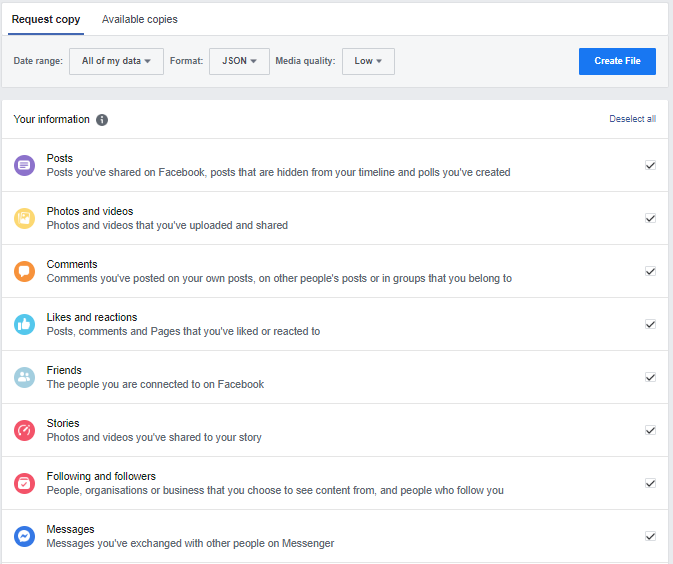
First things first I headed to the settings page on Facebook and clicked on “Your Facebook information”. Then from there I click on “View” adjacent to the “download your information”, which should lead you to the picture on the left.
So to summarise. Facebook Settings -> Your Facebook information -> View download your information
Next thing I did was change the data range to the dates I was interested in, JSON format and Low media quality and only ticked the “Messages” information. This means my file should have only what i’m interested in which is the text data from messenger.
If you have a lot of messages you might have multiple JSON files which you will have to merge.
path_to_file = '/Users/Jack/Desktop/Kat_qWLUe5rQ2g/message_merged.json'

import json
with open(path_to_file) as file:
    chat_history = json.load(file)

chat_history.keys()
Jupyter Notepad
I’m using Jupyter notepad for the analysis because it’s a useful tool for evaluating code and displaying graphics.
Line 1 is the path to the JSON file we are interested in assigned to the variable path_to_file.
Next we import the python module json which we need to decode the JSON file as seen in lines 3-5.
Pandas
Pandas is an open source data analysis and manipulation tool. In line 8 pandas is imported as pd. In line 10 we use it to put the data from the JSON file into a data-frame named messages.
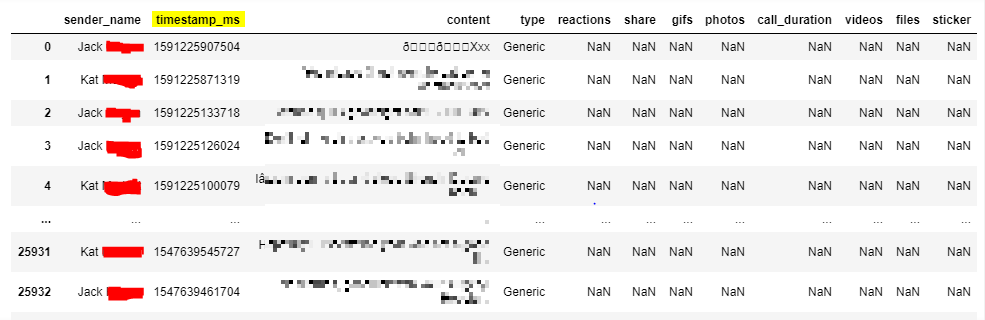
On line 12 I typed messages to check the data-frame and the image on the right shows the result.
Columns of the data-frame from left to right are; the index, the sender name, the timestamp (in ms) and the content of the messages. The remaining columns we’re not interested in.
import pandas as pd

messages = pd.DataFrame(chat_history['messages'])

messages
def convert_time(timestamp):
    return pd.to_datetime(timestamp, unit='ms')

test123 = convert_time(1571751984327)
test123
#Timestamp('2019-10-22 13:46:24.327000')

test123.date()
#datetime.date(2019, 10, 22)
Unix timestamp is the number of seconds that have elapsed since January 1, 1970.
https://www.epochconverter.com/
Timestamp
As you may have seen in the previous image I highlighted the timestamp_ms column. This is the date and time of the message written in Unix timestamp.
Facebook uses the Unix timestamp in milliseconds so it’s the number of milliseconds elapsed since January 1, 1970.
So in lines 13-14 I define a function called convert_time. This uses the pandas function to_datetime to return the UTC DatetimeIndex when you input a timestamp. Lines 16-17 show me testing that and line 18 which I commented out is the result.
Lastly I use the date() function on the test to show that you can separate the date out of the timestamp.
That’s it for this post but I will begin next post with creating a new column called “date” by applying the convert_time function we created to the timestamp column.